
How to Set Up a Blockchain RPC Endpoint (and Configure It Your Way)

Deen Newman
March 5, 2026
8 min read
Getting a production-ready RPC endpoint for one of over 100 supported chains with GetBlock takes about two minutes.
What might surprise you is how much you can configure in those two minutes – server location, archive access, MEV protection, API interface. This guide walks you through GetBlock’s endpoint configurator step by step.
If you need a quick Solana endpoint for testing, a production-ready Ethereum connection with archive access, or a Base endpoint with built-in MEV protection, you can configure exactly what you need from your GetBlock dashboard.
Get a blockchain RPC endpoint in 5 steps
New to GetBlock? Here's all it takes to go from zero to a working RPC endpoint:
Create a free account at GetBlock and open the Dashboard
Click "Get endpoint" to open the configurator
Select one of 100+ supported blockchains, network, node mode (full or archive), API interface, MEV protection, and data center where your RPC requests are handled (New York, Frankfurt, Singapore)
Click "Get" – your endpoint URL is ready instantly
Copy the RPC URL and paste it into your app, wallet, or development environment
That's it. You're connected.
What is an RPC endpoint?
Your application doesn't connect to a blockchain directly. It talks to a node – a computer that's already synced with the blockchain and can answer questions like "what's the balance of this wallet" or "submit this transaction." The URL your app uses to reach that node is called an RPC endpoint.
You could run your own node to get that URL. It means setting up the hardware, syncing the full blockchain history, which can take days for chains like Ethereum, and then maintaining it 24/7. GetBlock runs those nodes for you. You just get the URL. And it's genuinely as fast as it sounds.
What is a Shared Node?
A shared node is a blockchain node that GetBlock manages and maintains. You simply get an endpoint, your private RPC URL, that connects you to it. It's the fastest and most cost-effective way to start building on any blockchain.
What "shared" doesn't mean is that you have no control over what you're connecting to. GetBlock's Shared Node Configurator is a dashboard tool that lets you create and customize RPC node endpoints in seconds – what kind of node is on the other end, which regional cluster your requests route to, and which API interfaces are available.
Let’s walk through every step of the process and explain the key settings.
Step 1: Sign in to the Dashboard
Head to GetBlock and log in. You'll land directly on the Dashboard, which opens the Shared Nodes tab – exactly where you need to be for this tutorial.
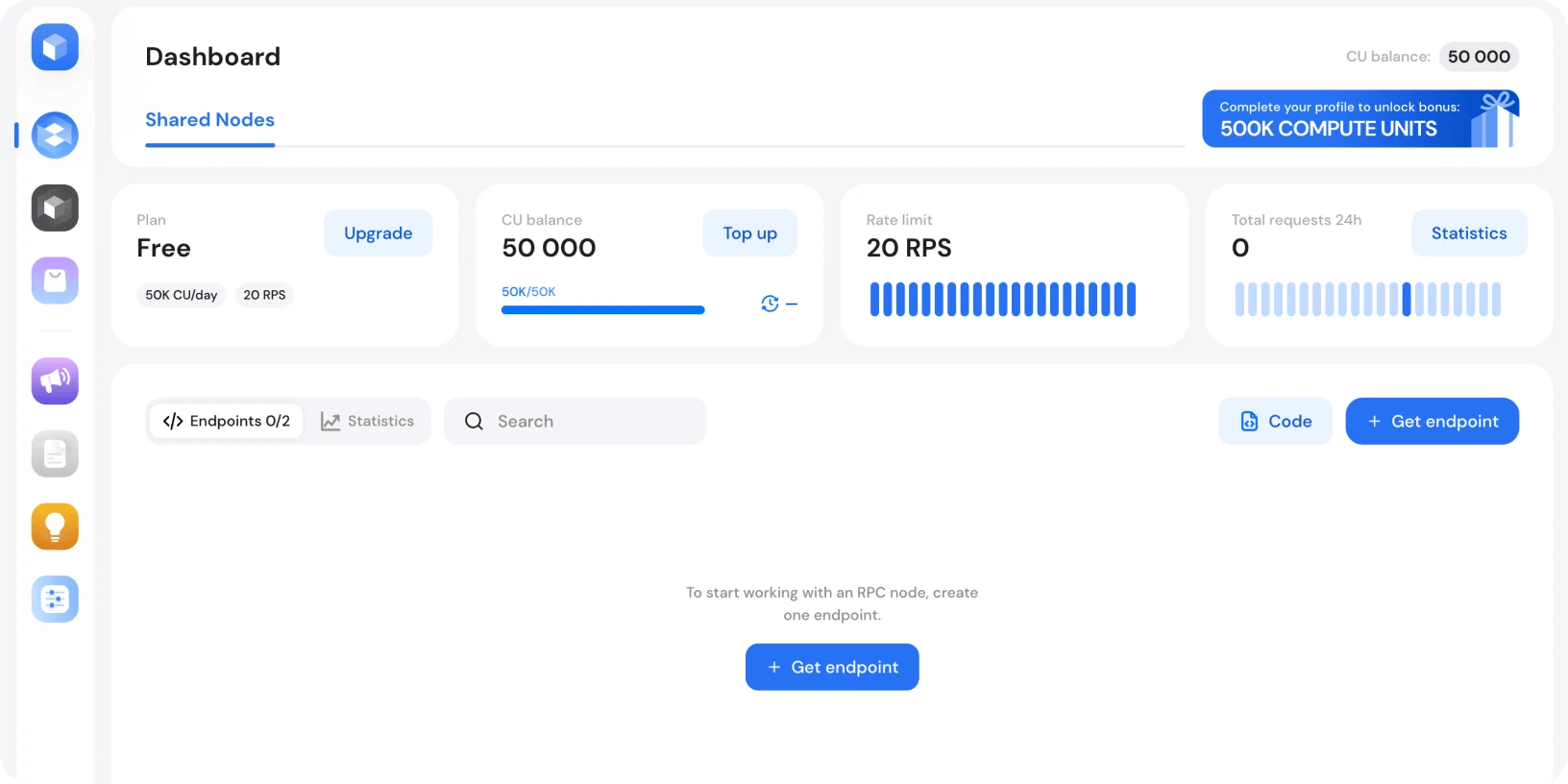
At a glance, your dashboard shows you:
Current plan and its details
Endpoints list – create endpoints, manage access tokens, and copy URLs here
Sidebar menu - Quick access to Dashboard, Dedicated Nodes, Pricing, Docs, Account Settings, and more
New to GetBlock? Every account starts with a free plan – 2 active endpoints, 50 CUs/day, and access to all supported blockchains, networks, and API interfaces, including MEV-protected endpoints. It's a full-featured tier to get you started.
Sign in with MetaMask, GitHub, or email and create your first endpoint now.
Step 2: Configure your endpoint
Look for the “+ Get Endpoint” button on your dashboard. Click it, and the configurator will open. This is a step-by-step form that lets you fully customize your endpoint before it's created.
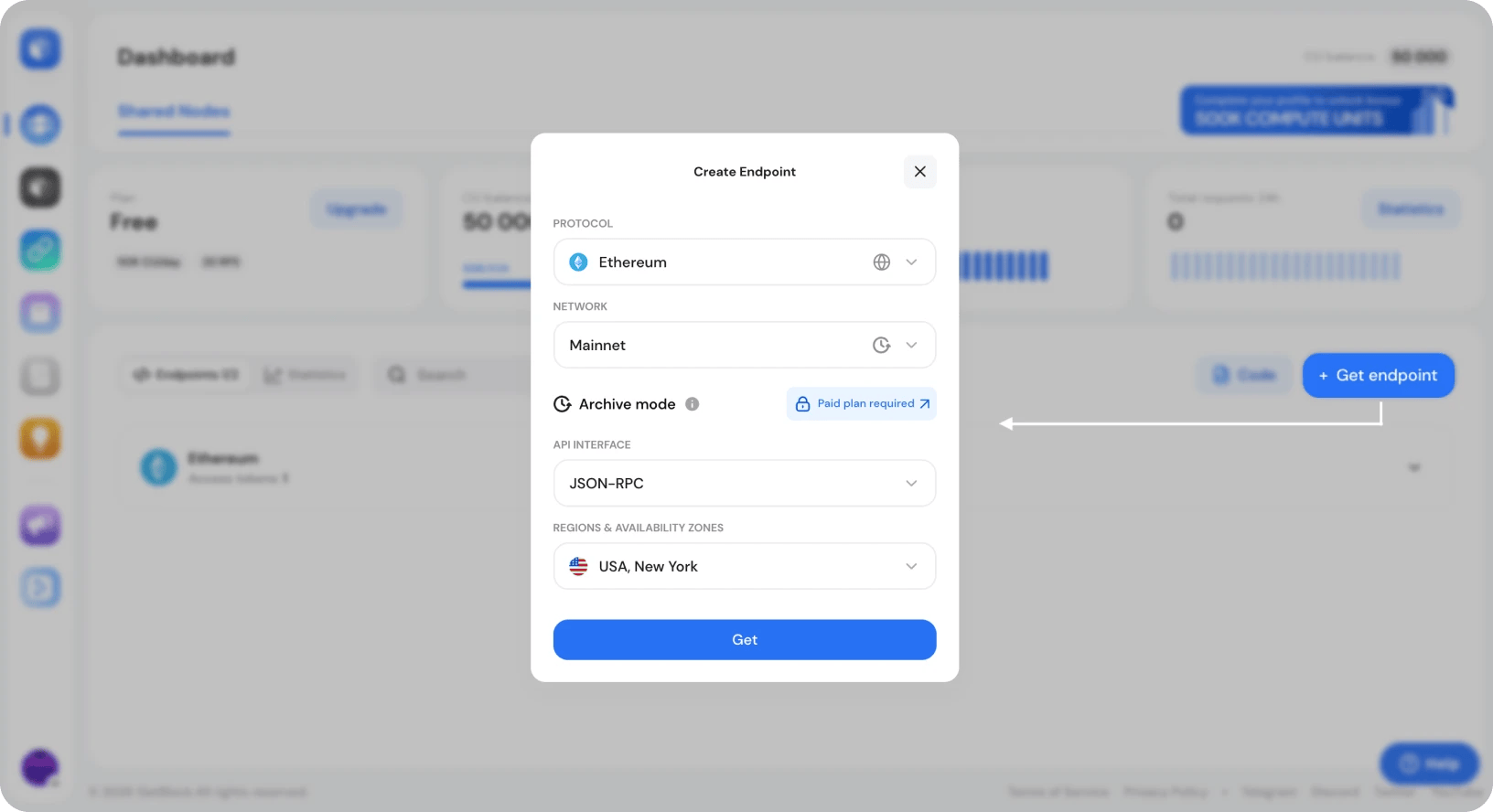
Here's what you can configure:
1. Protocol
Use the dropdown to select the blockchain protocol you want to connect to – Ethereum, BSC, Solana, or any of the available chains. GetBlock supports over 100 chains, and even more mainnets and testnets.
2. Network
Once you've picked a protocol, select the network – mainnet, testnet, devnet – any network available for that chain.
3. Node Mode
A full node is the default for all endpoints. It serves the current state of the blockchain. In GetBlock's configurator, archive mode is a toggle. Enable it if you need access to historical blockchain data, full node history from block zero – even on shared nodes.
Note: Archive queries is available starting from the Starter plan. If you're on the free plan, you'll need to upgrade to enable it.
4. API Interface
Depending on the protocol, available options may include JSON-RPC, WebSocket, GraphQL, gRPC, or MEV Protected endpoints.
MEV-protected endpoints route your transactions through private channels, shielding them from front-running and sandwich attacks by bots that watch the public mempool. It's not enabled by default – you can select the MEV Protected interface from the dropdown to activate it for an endpoint.
5. Region – Choose where your requests are routed
Select the geographic cluster your endpoint connects to. Currently available:
New York (US East)
Frankfurt (EU Central)
Singapore (Asia-Pacific)
If your infrastructure is in Europe, pick Frankfurt. If it's in the US, pick New York. If your users are primarily in Asia-Pacific, Singapore.
This is the setting that most providers handle automatically and invisibly. GetBlock makes it an explicit choice for a reason: the geographic distance between your application server and the node it calls has a direct impact on latency. Choosing a region that's geographically close to your hosting environment is one of the simplest latency optimizations available.
Step 3: Generate your RPC URL
Once you've configured all five options, click the Get button. In seconds, you'll see a confirmation: Access token successfully created. That's it. Your endpoint is live and ready to use.
Your RPC URL format looks like this:
1
https://go.getblock.io/YOUR_ACCESS_TOKEN/
The URL you just generated has your access token embedded directly in it. That string of characters in the path is what authenticates your requests. There's no separate API key to manage, no authentication header to configure.
Copy the URL and paste it where you'd normally put an RPC URL, and you're connected.
Step 4: Manage your endpoints
All your created endpoints are added to the endpoints list on your dashboard. The list is organized by protocol, so if you have multiple Ethereum endpoints, they'll be grouped together.
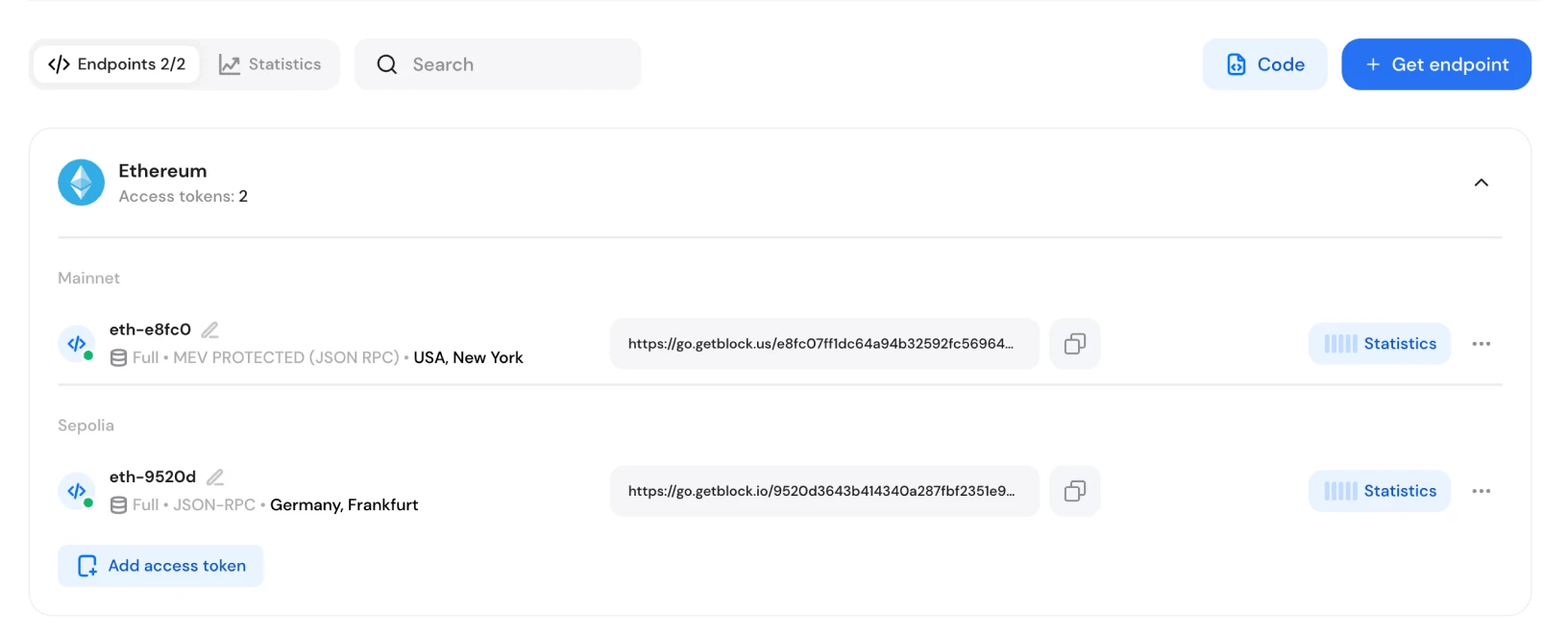
For each endpoint, you can:
See its settings at a glance (full or archive mode, API interface, MEV protection label if active, geo tag)
Copy the RPC URL with one click
Delete the endpoint when it's no longer needed
Roll it – create a new endpoint with the same settings. If your endpoint URL was accidentally committed to a public repository or otherwise exposed, rolling it immediately invalidates the old URL and creates a new one.
If you need all your endpoints in one place for your code, click the "Code" button on the dashboard to access your full configuration file in JSON or JavaScript format – a ready-to-use list of all your endpoints and their access tokens.
GetBlock Shared Node plans: Free tier vs Paid options
GetBlock's free plan is genuinely useful for development, testing, and small projects. But paid tiers unlock significantly more capacity and features:
50M to 500B CUs per month (vs. 50k/day on free)
100 to 1,000 RPS throughput (vs. 20 RPS on free)
10 to 250 simultaneous endpoints (vs. 2 on free)
Faster support response times (down to 4 hours vs. 24 hours)
Premium engineering support, archive endpoints, advanced statistics, team accounts, and more
Compare plans and limits:
Shared Node Tier | CUs | Endpoints | Throughput |
Free | 50k/day | 2 | 20 RPS |
Starter | 50M/month | 10 | 100 RPS |
Advanced | 220M/month | 25 | 300 RPS |
Pro | 600M/month | 50 | 500 RPS |
Enterprise | Up to 500B CUs | Up to 250 | 1,000+ RPS |
Note: CUs (Compute Units) are GetBlock's request currency. Every API call to a blockchain node costs a certain number of CUs depending on the method called. Your plan determines how many CUs you get.
Upgrade from the dashboard
If you need more scale, upgrading is straightforward from within the dashboard:
Click Upgrade next to your current plan, or go straight to the Pricing page
Select your plan
Choose monthly or annual billing (annual saves 20%)
Pick your payment method – card or crypto
Your new plan activates as soon as payment is confirmed.
Full RPC configurability on every plan
What makes GetBlock Shared Node access different? The honest answer is that most RPC providers don't expose this much control at the shared node tier.
GetBlock puts real configuration decisions in your hands before the endpoint is created, on every plan:
Archive mode on demand – not just full node access
MEV protection at the endpoint level — opt in for supported chains
Multi-region APIs – configurable per endpoint
Multiple API interfaces – support for all protocol-native interfaces without a plan gate
Everything you need to connect to any blockchain is already waiting in your GetBlock dashboard.
Pick your chain, tune your endpoint, and walk away with a live RPC URL fully set up the way you need it. You know exactly what your endpoint does, because you configured it yourself.


Popular Posts

June 9, 2021
4 min read

November 9, 2021
5 min read

May 24, 2022
5 min read

March 18, 2021
4 min read


